Getting started
Add a few songs to the library, drag them into a setlist, and watch the timing, keys and energy add up — in five minutes.
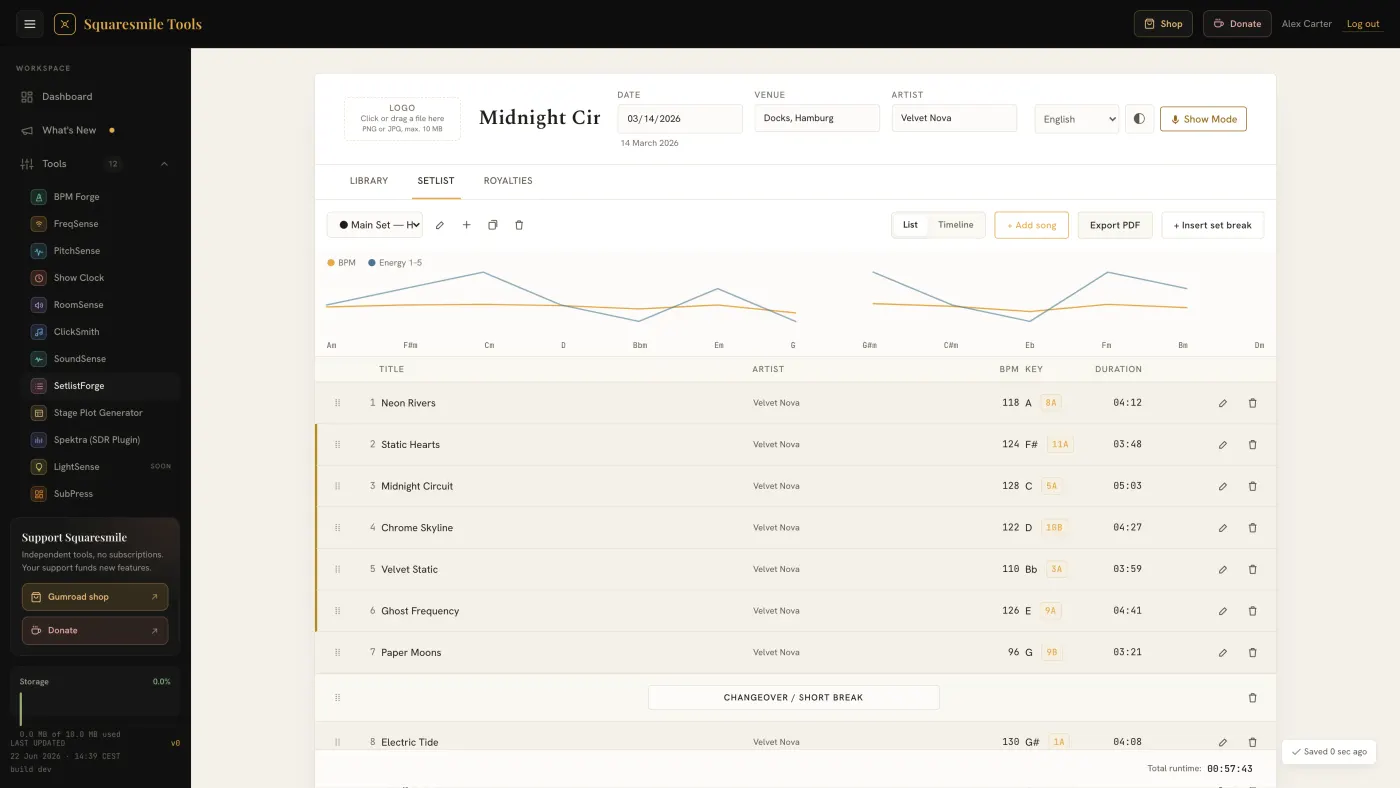
SetlistForge has two kinds of data: a library of songs you enter once, and setlists built from that library. Everything is saved automatically in the browser and, if you accept the one-time backup prompt, to your account (see Account sync).
Quick start
- Open SetlistForge from the dashboard. You land on the Library tab.
- Tap + Add song. Only the title is required. Add duration, key and mode (Major/Minor), BPM (or Tap at least three times), an energy level from 1 to 5 and notes. Enter saves; Save & add next keeps you typing.
- Switch to the Setlist tab. Tap + Add song to open the picker, or drag songs across from the Library. Tap a song more than once to add it twice (an encore, say).
- Fill in the show header: Show title, Date, Venue, Artist. Drop a logo (PNG or JPG, max 10 MB) into the slot on the left — it prints on the PDF.
- Watch Total runtime in the footer. Tap + Insert set break between sets and give it a length in minutes; set a Slot (min) target and the footer shows how much is over or free.
That is a timed setlist. From here: export the PDF, run the gig in Show Mode, or prepare the royalties report.
The screen
- Show header — sticky across all tabs: logo, title, date, venue, artist, the light/dark theme toggle, the Show Mode button and the account-backup status.
- Library — a searchable table (title or artist) with filters for key, BPM range and minimum energy. Rows can be edited, duplicated, deleted (undo for ten seconds) or given an audio file.
- Setlist — the active setlist, with a switcher to create, rename, duplicate and delete setlists (grouped into Upcoming, Past and Undated), and a List / Timeline toggle.
- Royalties — the performed-songs report; Tantiemen in German.
Reading the set
- Camelot badges — every song with a key gets a Camelot wheel code. Same number, or a neighbouring number with the same letter, mixes smoothly.
- Energy Arc — the chart above the list draws each song's energy (1–5); the dotted line is BPM. Aim for waves, not a flat line. It needs at least two songs.
- Transition warnings — a large Camelot distance or BPM jump is flagged on the row as a hard transition.
- Timeline — the same setlist on a time rail with cumulative start times and an energy spine.
Getting songs in faster
Import songs (CSV) takes pasted CSV or tab-separated text, or a .csv
/ .txt file (max 2 MB, 1,000 rows per import). Pick the delimiter or let
it auto-detect, tick First row is headers, then map each column to a
field — Title is the only one that must be mapped.
Export library on the Royalties tab writes a JSON backup of songs and setlists; Import library restores one (max 10 MB) and replaces what is there — you are asked first.
Audio references
Attach an MP3, M4A, OGG or WAV to a song with the paperclip. Audio stays in this browser only — it is never backed up to your account and is not part of a library export.
Account backup is on by default once you accept the prompt. It is stored readable on the server, not end-to-end encrypted. Decline it and everything stays on this device.
Thanks for the feedback.