Getting started
Add a few songs to the library, drag them into a setlist, and watch the timing, keys and energy add up — in five minutes.
On this page
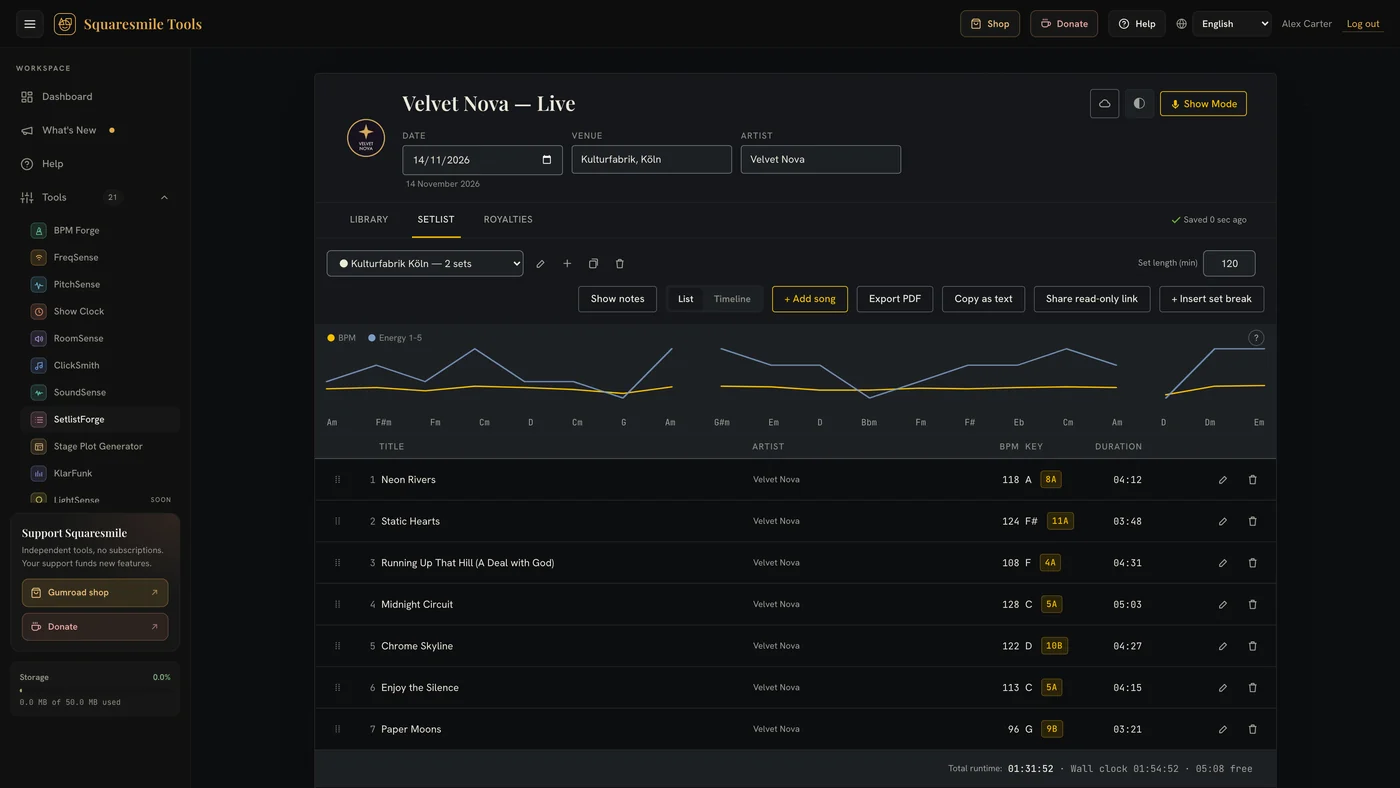
SetlistForge has two kinds of data: a library of songs you enter once, and setlists built from that library. Everything is saved automatically in the browser and, if you accept the one-time backup prompt, to your account (see Account sync).
Quick start
- Open SetlistForge from the dashboard. You land on the Library tab.
- Tap + Add song. Only the title is required. Add duration, key and mode (Major/Minor), BPM (or Tap at least three times), an energy level from 1 to 5, composer and lyricist for the royalty reports, and notes. Enter saves; Save & add next keeps you typing.
- Switch to the Setlist tab. Tap + Add song to open the picker, or drag songs across from the Library. Songs already in the set are marked in the picker; tap one again to add it twice (an encore, say). Removed a row by mistake? You can undo it.
- Fill in the show header: Show title, Date, Venue, Artist. Drop a logo (PNG or JPG, max 10 MB) into the slot on the left — it prints on the PDF.
- Watch Total runtime in the footer; each set also shows its own subtotal. Tap + Insert set break between sets and give it a length in minutes (20 by default); set a Set length (min) target and the footer shows how much is over or free.
That is a timed setlist. From here: export the PDF, run the gig in Show Mode, or prepare the royalties report.
The screen
- Show header — sticky across all tabs: logo, title, date, venue, artist, the light/dark theme toggle, the Show Mode button and the account-backup status.
- Library — a searchable table (title or artist) with filters for key, BPM range and minimum energy. Rows can be edited, duplicated, deleted (undo for ten seconds) or given an audio file.
- Setlist — the active setlist, with a switcher to create, rename, duplicate and delete setlists (grouped into Upcoming, Past and Undated), and a List / Timeline toggle.
- Royalties — the performed-songs report; Tantiemen in German.
Reading the set
- Camelot badges — every song with a key gets a Camelot wheel code. Same number, or a neighbouring number with the same letter, mixes smoothly.
- Energy Arc — the chart above the list draws each song's energy (1–5); the dotted line is BPM. Aim for waves, not a flat line. It needs at least two songs.
- Transition warnings — a large Camelot distance or BPM jump is flagged on the row as a hard transition.
- Timeline — the same setlist on a time rail with cumulative start times (planned breaks included) and an energy spine.
Getting songs in faster
Import songs (CSV) takes pasted CSV or tab-separated text, or a .csv
/ .txt file (max 2 MB, 1,000 rows per import). Pick the delimiter or let
it auto-detect, tick First row is headers, then map each column to a
field — Title is the only one that must be mapped.
Export library in the Library toolbar writes a JSON backup of songs and setlists; Import library restores one (max 10 MB) and replaces what is there — you are asked first.
Audio references
Attach an MP3, M4A, OGG or WAV to a song with the paperclip. Audio stays in this browser only — it is never backed up to your account and is not part of a library export.
Sharing the set with the band
On the Setlist tab, Share read-only link gives you a link to the setlist that bandmates open in their own browser — no account or licence of their own, and no way to change it. They see the show details, the running order, durations, keys and BPM; your stage notes only if you tick Include stage notes. Composers, lyricists and everything in the royalty reports are never on it.
The link is a snapshot: after changing the set, press Update link — the address stays the same. Stop sharing ends it at once; otherwise it expires 90 days after your last update, or 30 days after the show if that is later. The printed stage sheet and Copy as text work as before.
Account backup is on once you accept the prompt. A new device loads your library before it saves anything, and edits from two devices are merged song by song. It is stored readable on the server, not end-to-end encrypted. Decline it and everything stays on this device.
Thanks for the feedback.