01
Start listening
Allow the microphone and pick the input: the phone’s own mic, a measurement mic or a USB interface fed from the desk. Type the label of the mix — Wedge 3, IEM 2.
Free ring-out assistant · A Squaresmile app
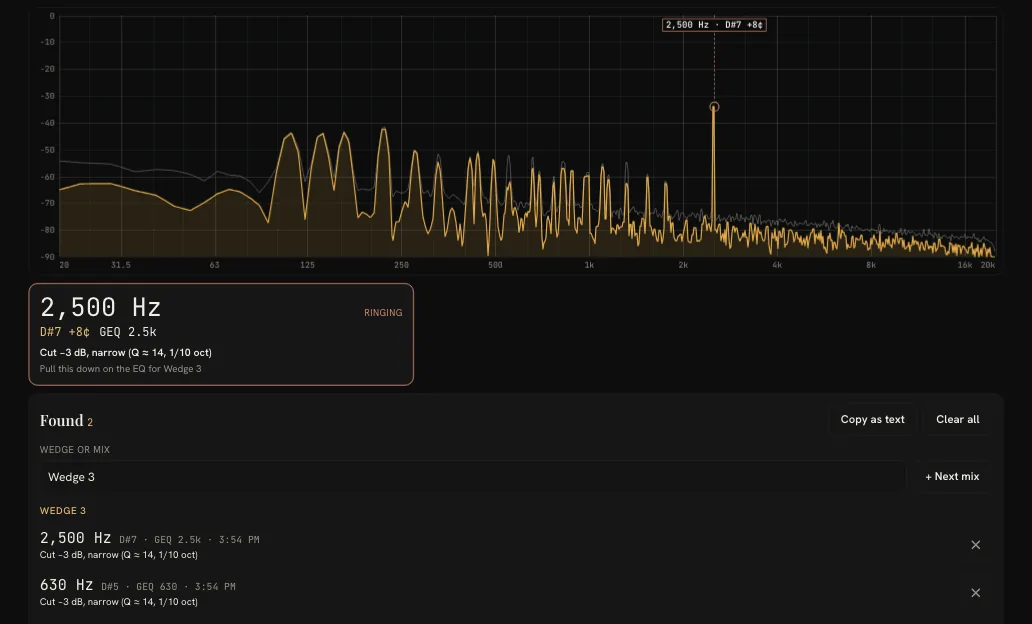
Ring out a wedge with the phone in your hand. SpectraSense names the frequency that rings, the note, the GEQ fader — and the neighbour when it sits between two — and suggests a narrow cut to start with. Every ring goes into a Found list per wedge or mix, ready to copy as text. Free, in the browser, nothing to install.
How it works
Allow the microphone and pick the input: the phone’s own mic, a measurement mic or a USB interface fed from the desk. Type the label of the mix — Wedge 3, IEM 2.
Where the singer’s mouth will be, not against the wedge. Music off, unused mics muted — only the mic and the mix you are ringing out stay open.
As it starts to ring, SpectraSense flags it: frequency, note, GEQ band and a cut to start with. Pull the fader back first — the card holds the last ring for you to read.
Make the cut on that mix’s EQ and go up again for the next ring. When you are done, copy the Found list as text into the advance sheet or a message.
Features
A ring is flagged only when three tests agree for 0.3 seconds: a narrow peak, a lone tone without overtones, and a level that is steady or growing. A sung note with its overtones stays unflagged.
The nearest band of a 31-band graphic EQ — and the neighbour when the ring sits between two, so you pull both a little rather than one a lot. The note comes with cents, e.g. D7 −7¢.
−3 dB and narrow, about 1/10 octave (Q ≈ 14). If the same ring comes back, a further −3 dB, to −9 dB at most — then the mic or the wedge is simply too loud for the room.
Every ring with its time, note, band, cut and the wedge or mix it belongs to. It stays through Stop and a reload; Copy as text sends it on, one ring per line.
On a phone the answer card sits on top with the frequency in large type, readable at arm’s length with the other hand on a fader. The screen stays awake while it listens, and the app speaks 11 languages.
The sound is analysed in the browser and never leaves the device. The Found list stays on this device; only your display and detection settings follow your account.
In the tool
Honest limits
FAQ
No. It tells you where to cut — the frequency, the note, the nearest GEQ band and a suggested cut — and you make the cut on your desk. SpectraSense never touches the console.
It is made for the ring-out before the show, not for running under music. A held pure tone — a test oscillator, a whistle, a flute or a synth pad with few overtones — looks exactly like steady feedback and will be flagged.
Yes. Hold the phone where the singer’s mouth will be — at the mic, not against the wedge: a phone microphone overloads long before a wedge does. Low hoots around 100–300 Hz read smaller on a phone than they sound in the room, because phone microphones roll off the low end; a measurement mic or a USB interface reads them better.
It flags a frequency only when three tests agree for 0.3 seconds: a narrow peak standing well above the spectrum around it, a lone tone without the overtones a musical note has, and a level that is steady or growing. A note with overtones stays unflagged; you can switch the note check off.
A starting point the way most engineers ring out: −3 dB and narrow, about 1/10 octave (Q ≈ 14). If the same ring comes back, a further −3 dB, to −9 dB at most. On a graphic EQ it names the nearest band — and the neighbouring one when the ring sits between two. It is a suggestion, not a setting.
Every ring SpectraSense confirms, with the time, frequency, note, GEQ band, suggested cut and the label of the wedge or mix you were ringing out. It stays through Stop and a reload until you clear it, and Copy as text puts it on the clipboard, one ring per line. It is kept on this device only — not synced, never uploaded.
Your device’s own microphone, a measurement mic or a USB interface fed from the desk — on an interface with several inputs, the first one. Levels are in dBFS, relative to the input, not sound pressure; for SPL use RoomSense.
No. The sound is analysed in your browser; no audio is recorded or sent anywhere. Your display and detection settings follow your account; the Found list and the chosen input stay on the device.
Yes. Free with a free Squaresmile account, which also unlocks every other free Squaresmile browser tool. It runs on phones, tablets and laptops, with nothing to install, and speaks 11 languages.
Ready when you are
Create a free Squaresmile account and you’re in — one login unlocks SpectraSense and every other free Squaresmile app.
The Squaresmile suite
Tools marked Free are yours the moment you sign up; Premium tools and plugins are paid. One account keeps the whole toolbox with you from gig to gig — the browser tools need no install and no app store.
Show day
 Show ClockPremium
Stage timer & run-of-show with 3 s crew sync
Show ClockPremium
Stage timer & run-of-show with 3 s crew sync
 Stage Plot GeneratorPremium
Stage plots, input lists & DMX patch in one doc
Stage Plot GeneratorPremium
Stage plots, input lists & DMX patch in one doc
 SetlistForgePremium
Setlists with timing, keys & royalty reports
SetlistForgePremium
Setlists with timing, keys & royalty reports
 RiderSmithPremiumComing soon
Tech riders in 11 languages, assembled from your tools
RiderSmithPremiumComing soon
Tech riders in 11 languages, assembled from your tools
Plan the rig
 RF CoordinationFree
Find safe wireless-mic windows for DE / UK / US / EU
RF CoordinationFree
Find safe wireless-mic windows for DE / UK / US / EU
 PowerSenseFree
Loads per phase, cable checks & distro headroom
PowerSenseFree
Loads per phase, cable checks & distro headroom
 RoomSenseFree
Acoustic reference: room modes, SPL, LUFS & EQ
RoomSenseFree
Acoustic reference: room modes, SPL, LUFS & EQ
 MicSenseFree
Mic reference for live — specs, response curves & polar patterns
MicSenseFree
Mic reference for live — specs, response curves & polar patterns
Train your senses
 SoundSensePremium
Ear training for sound engineers — 21 modules
SoundSensePremium
Ear training for sound engineers — 21 modules
 RiggingSenseFree
Bridle & truss statics, taught step by step
RiggingSenseFree
Bridle & truss statics, taught step by step
Studio & prep
 ClickSmithFree
Turn any song into an L/R click track (WAV)
ClickSmithFree
Turn any song into an L/R click track (WAV)
 BPM ForgeFree
Tap tempo, metronome, tuner & per-song setlists
BPM ForgeFree
Tap tempo, metronome, tuner & per-song setlists
 PitchSenseFree
Hz ↔ note converter, cents meter & reference tones
PitchSenseFree
Hz ↔ note converter, cents meter & reference tones
 TempoSenseFree
Hears the tempo — live BPM, ÷2 / ÷4 / ÷8 layers, delay times & MIDI out
TempoSenseFree
Hears the tempo — live BPM, ÷2 / ÷4 / ÷8 layers, delay times & MIDI out
 LoudSenseFree
LUFS, true peak & clips for any file — verdict per platform, nothing uploaded
LoudSenseFree
LUFS, true peak & clips for any file — verdict per platform, nothing uploaded
Desktop & plugins


